
How to Add a Sale
Go to Sales from the navigation panel on the left side of the screen.
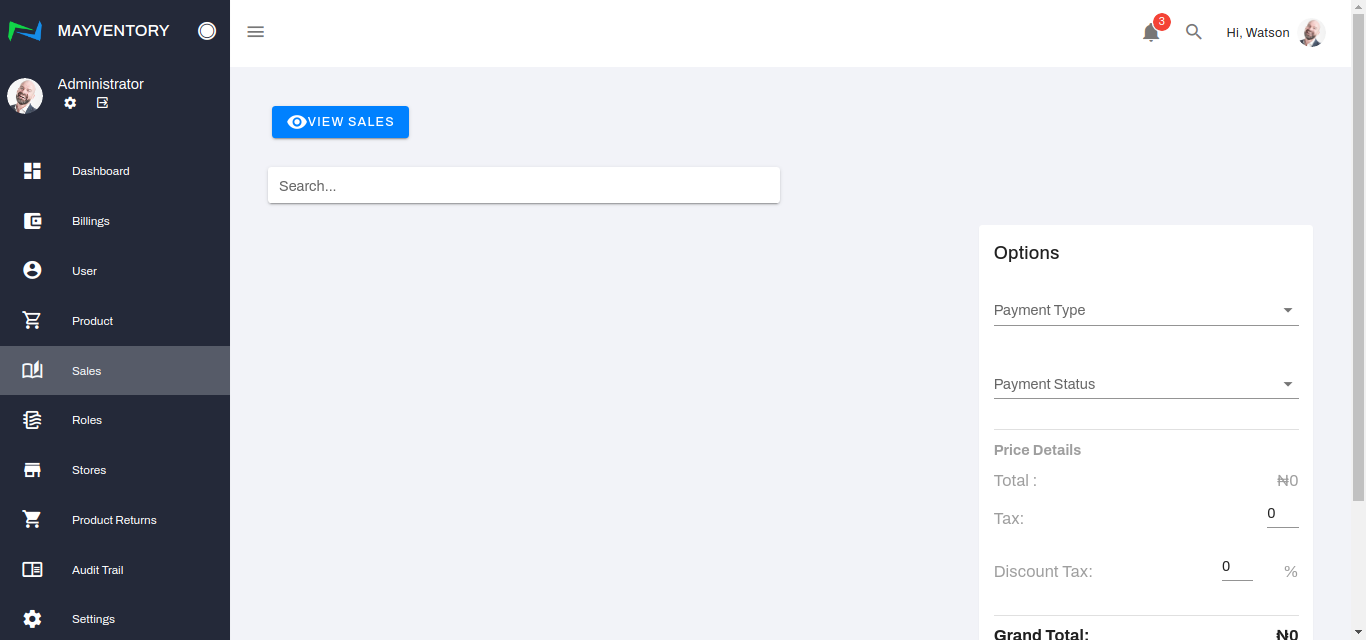
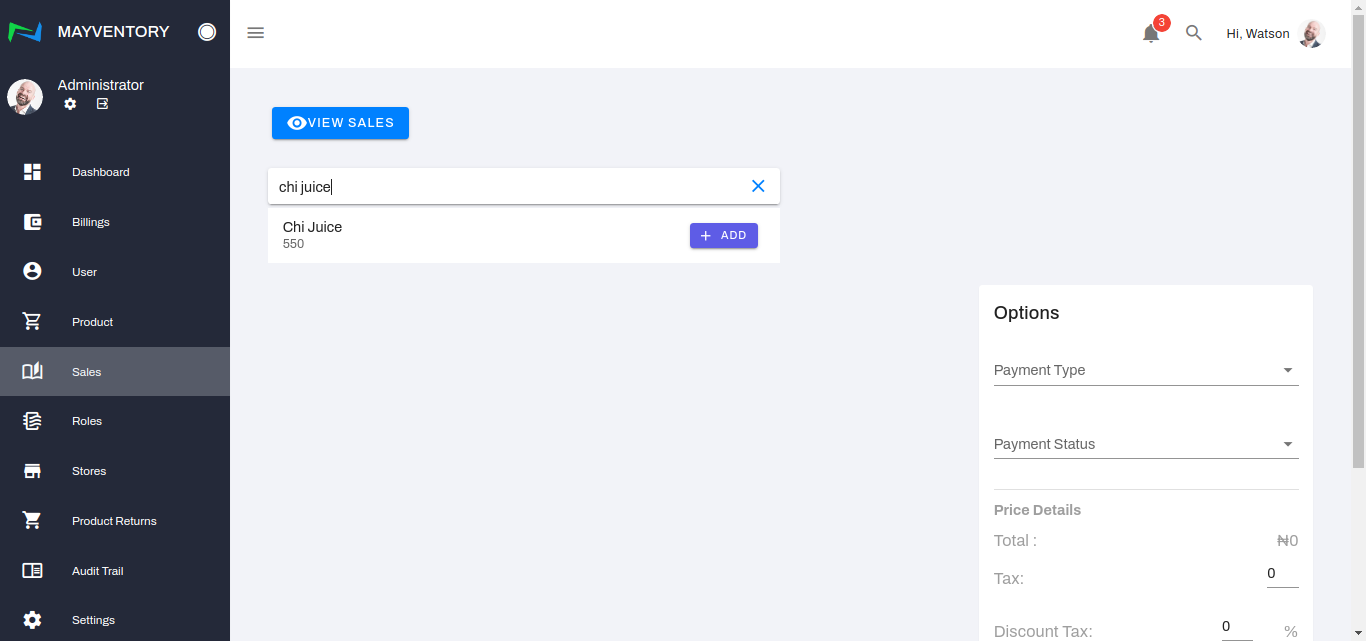
Click on the search box and type in the product that has just been sold or is about to be sold. In our example(image below), it is Chi Juice.
Once the search returns a result that matches your query, click on the Add box
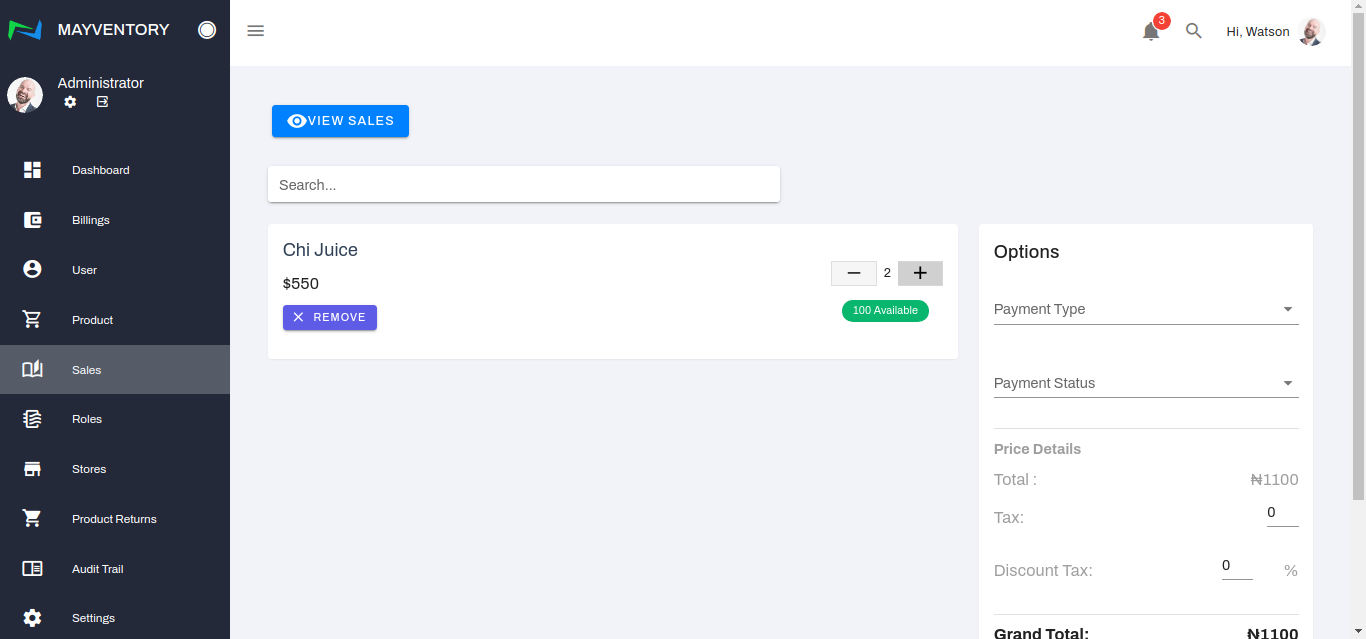
To select the amount of quantity that was bought, you click on either the + or - box. The plus box increases the quantity and the minus box decreases the quantity. In the picture below, only 2 quantities of Chi Juice were bought.
You can add more than one product at a time by following steps 1-4 as many times as necessary. See the image below.
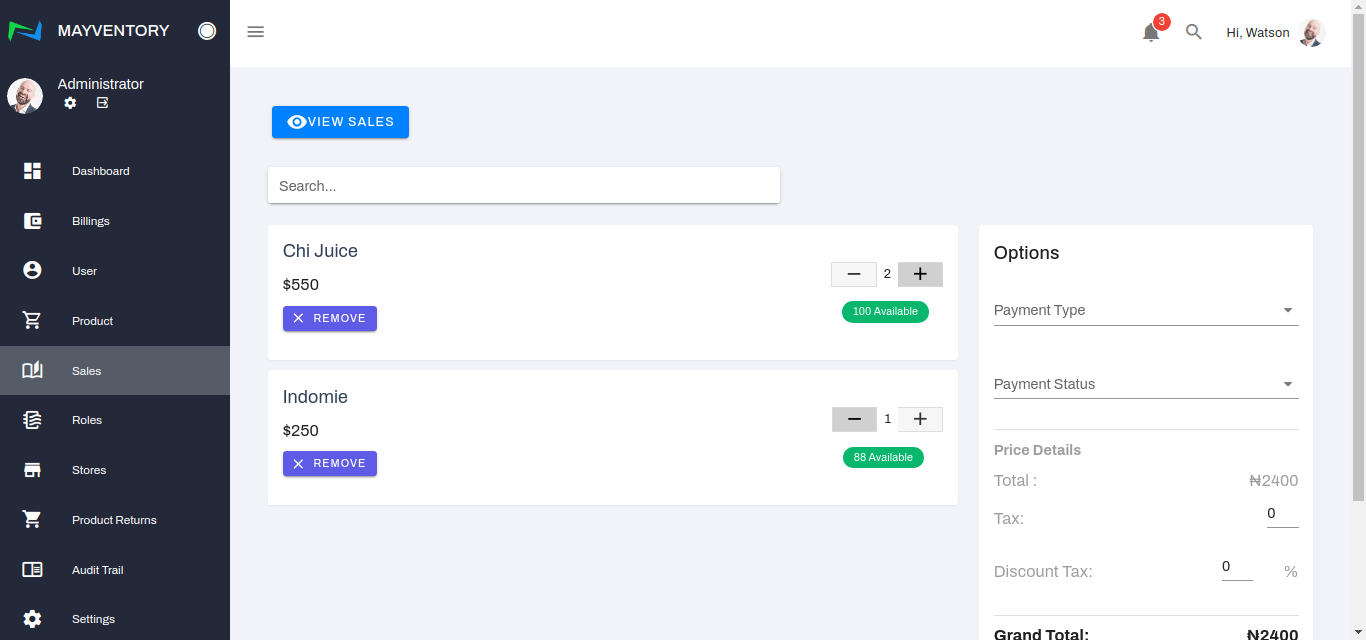
Next, choose the mode of payment which can either be through POS, Cash, or Transfer via the Payment Type
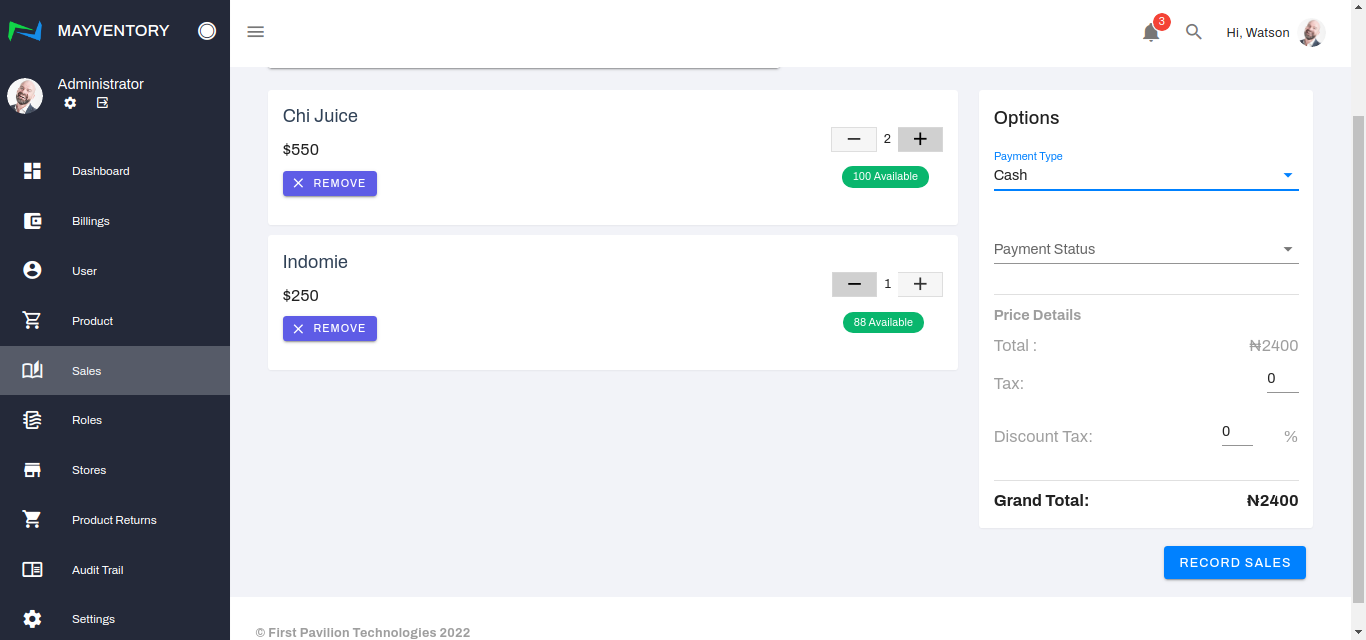
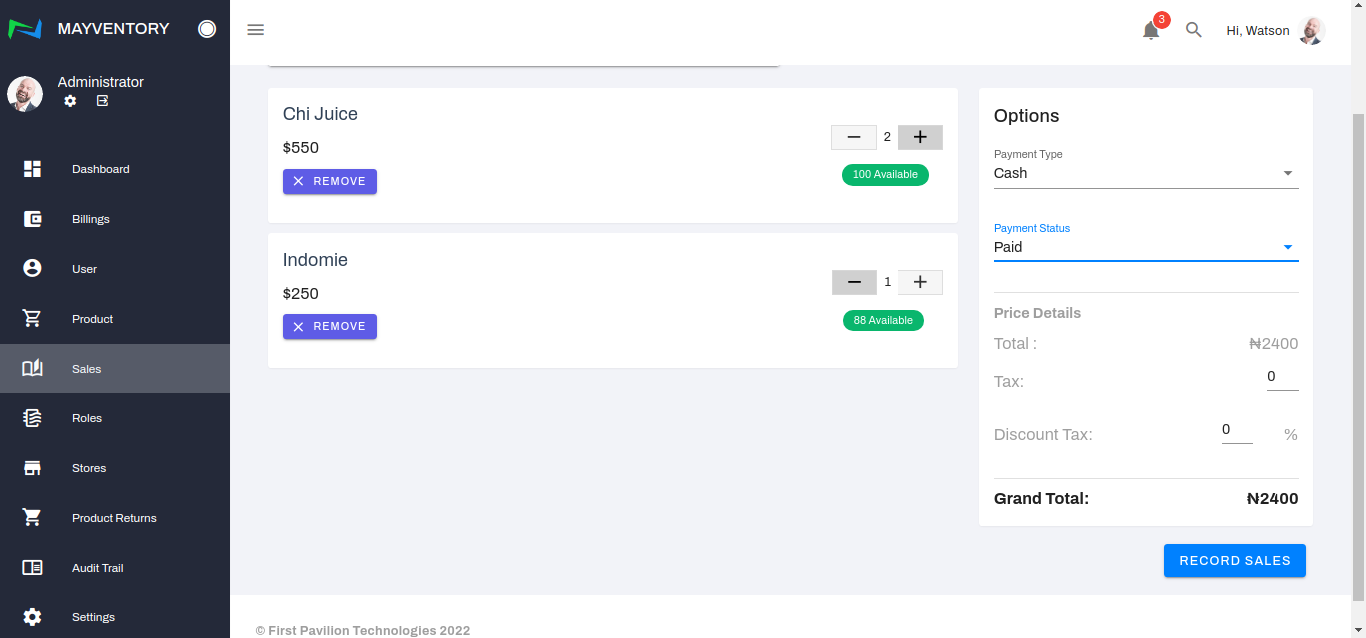
Choose the payment status - Paid or Unpaid, via the Payment Status box
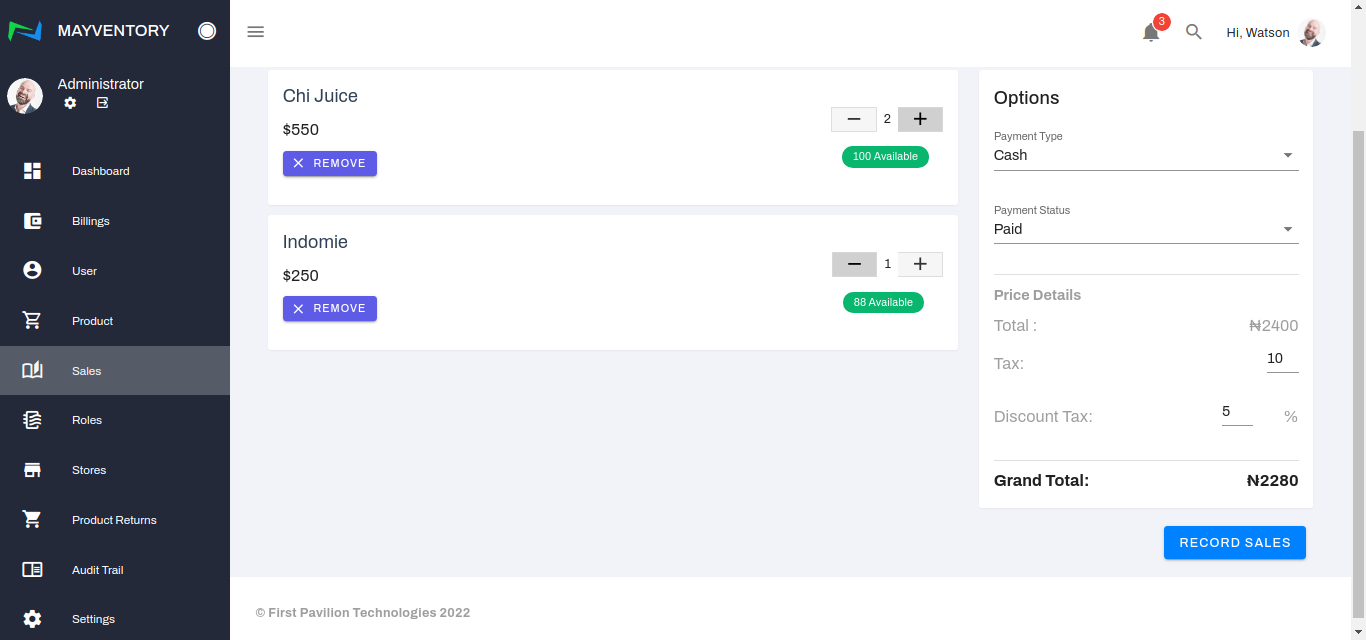
Under the price details, the calculations for the total price would be done automatically. Input the tax in the tax slot and discount, if any, in the discount slot. Once again, all calculations would be done automatically.
Once satisfied with all the inputs, click on Record Sales to register the sale.
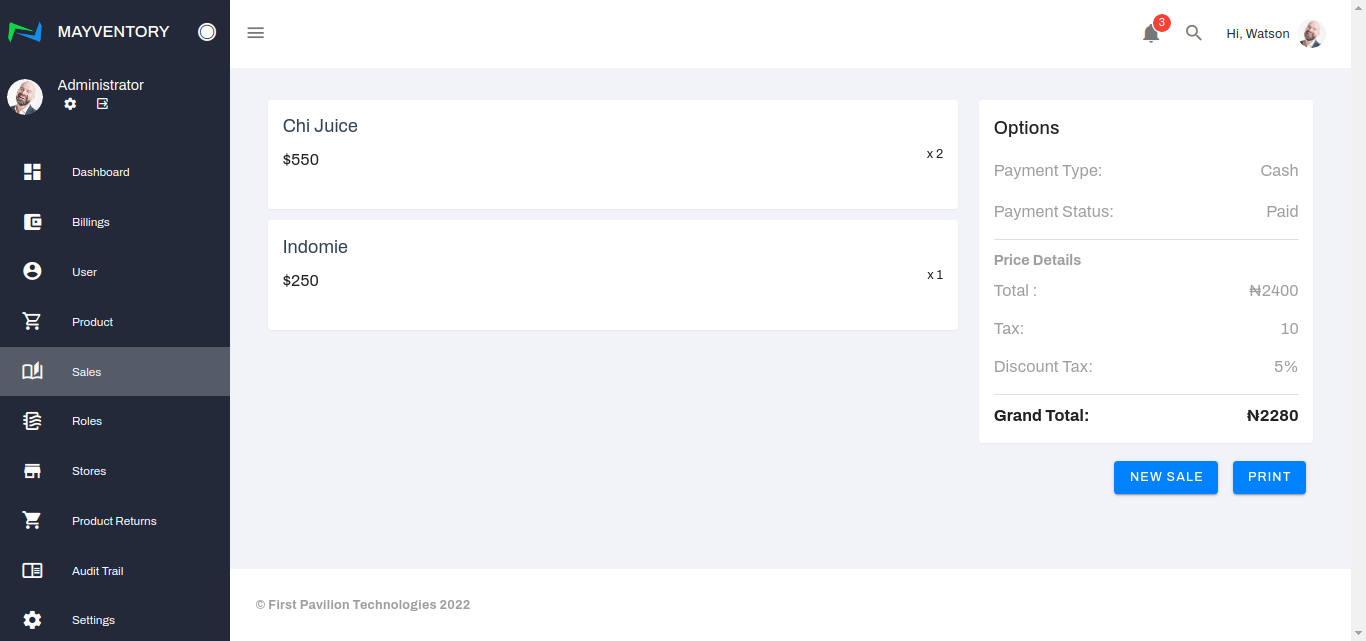
Finally, you would get taken to a page where you can either print the invoice or record a new sale. The option is yours!
Last updated