
How to view a Sale
Go to Sales from the navigation panel on the left side of the screen
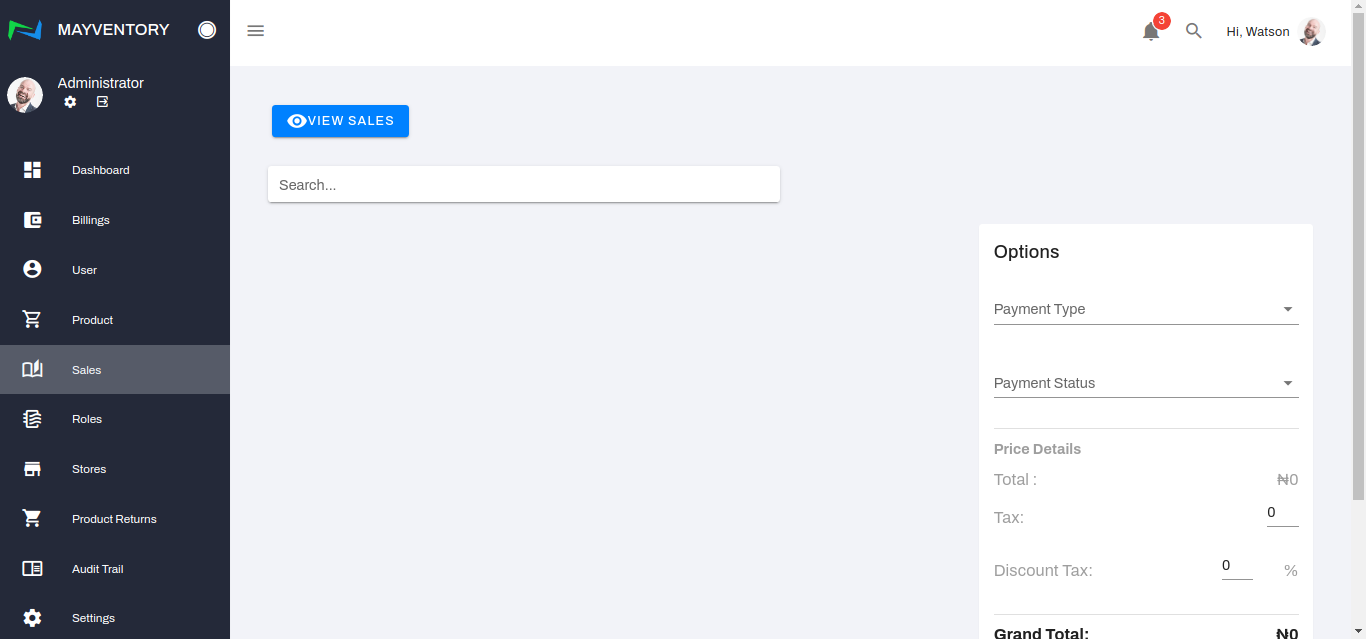
Click on View Sales and a new page containing a list of recorded sales comes up
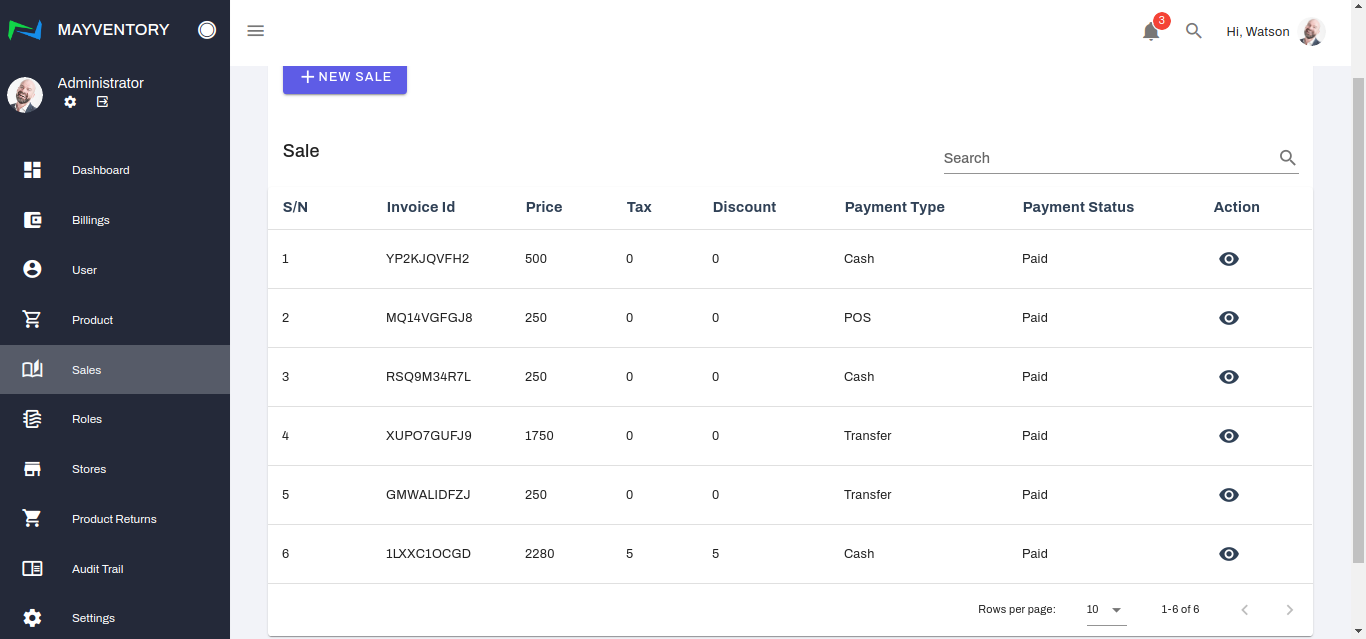
The information is arranged in a table-like manner and here is what each column represents:
Serial Number (S/N): This is a number assigned to a sale that was recorded.
Invoice Id: This is an automatically generated number serving as your transaction id number.
Price: This is the price tag of the goods bought.
Tax: Tax is a fee imposed on the sales of goods bought.
Discount Tax: Discount Taxes are discounts in percentage format given on a product or sale.
Payment Type: This indicates the mode of payment of the goods bought.
Payment Status: This indicates the status of the payment - Paid or Unpaid.
Action: This contains a button used to perform advanced action on a recorded sale. When you click on the eye-like icon, you will get directed to a page where you can perform advanced activities like sending an invoice via email or printing an invoice out.
To save yourself the stress of searching for a sale line by line, you can make use of the search box at the top right corner of the page. All you need to do is punch in the invoice id.
You can also search with a Start and End date
Last updated